On this page17 sections
- Before you start: write your list
- Step 1: search your username
- Step 2: read what each card gives away
- Step 3: find your oldest and most dormant accounts
- Step 4: search every email address
- Step 5: search your phone number
- Step 6: decide what to do with each account
- Step 7: keep a record and check again
- Keep yourself out of Fingerprint
- What a self-audit costs
- FAQ
- How do I check my digital footprint for free?
- What can someone find from just my username?
- Does deleting an account remove it from search results?
- How do I remove myself from Fingerprint.to?
- How often should I search myself?
- Start with your oldest handle
Most people have never run their own username through an OSINT tool. Investigators, journalists, scammers and curious strangers have, and what they find is usually a longer list than you'd expect: the forum you joined in 2011, the gaming profile with your city in it, the marketplace account that still shows your real name.
This guide walks through a self-audit on Fingerprint.to. It takes about ten minutes, the first searches are free, and you'll finish with a list of accounts to keep, clean up, unlink or delete.
Before you start: write your list
A search only finds what you search for, so spend two minutes on a list:
- Every username you've used. Your current handle, the one before it, the gamer tag, the handle with the underscore, and the one with your birth year on the end.
- Every email address. The current one, the old school or university address, the ISP address, and any throwaway you reused more than once.
- Every phone number you've had, in international format with the country code, such as +14155550123.
Each identifier is one search. A free account includes a monthly allowance and keeps your search history, and the public demo runs real searches without an account at all.
Step 1: search your username
Open the username search, type the handle and hit Search. As of October 2026, Fingerprint checks 736 sites at once and streams back every profile it confirms. A typical search finishes in about 20 seconds.
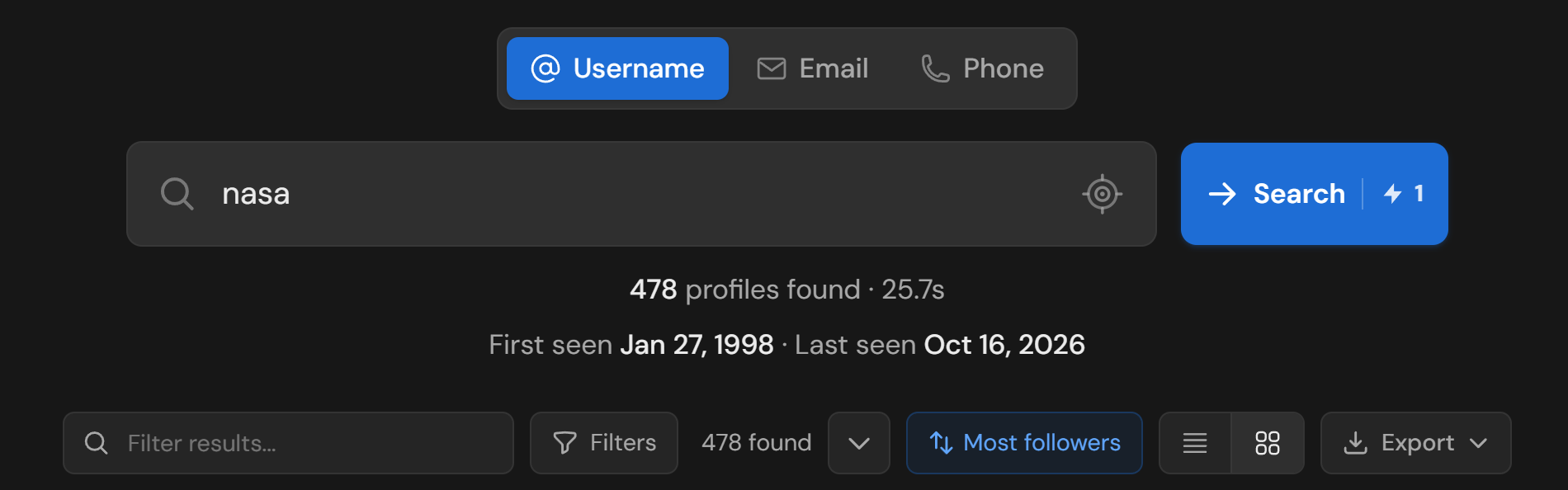
We used the handle nasa for the screenshots in this post because it's public and extremely common, which makes it the hard case.
Two lines under the search box summarize what came back:
- Profiles found, and how long the search took.
- First seen and last seen: the oldest account creation date across the results, and the most recent activity. For your own handle, that's the age of your trail and whether it's still growing.
If your handle is common, you'll know fast. Once a search passes 350 matches, the result count gets a "possibly common username" note, and past 600 it becomes "very common". That doesn't mean the search failed. It means most of those accounts belong to other people, and your job is to find yours among them.
Narrowing down is built in:
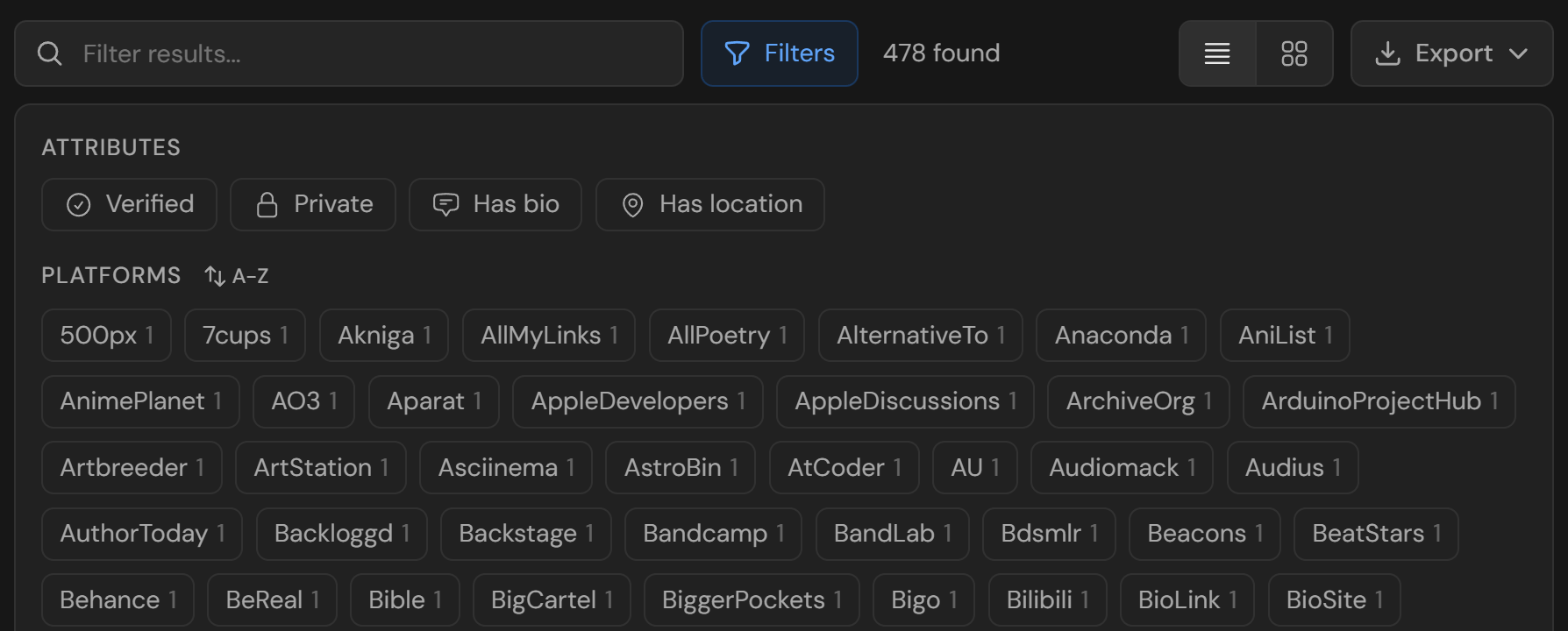
- Filter results matches any text on a card, so type your real name, your city or a phrase from your bio.
- Attribute filters narrow to verified accounts, private accounts, or only the cards with a bio or a location.
- Platform chips show how many hits each site returned. For a common handle, the platforms with exactly one result are the ones worth checking first.
Step 2: read what each card gives away
Every result card is built from the public profile page, not just an "account exists" check. Here's what someone learns from a single card:
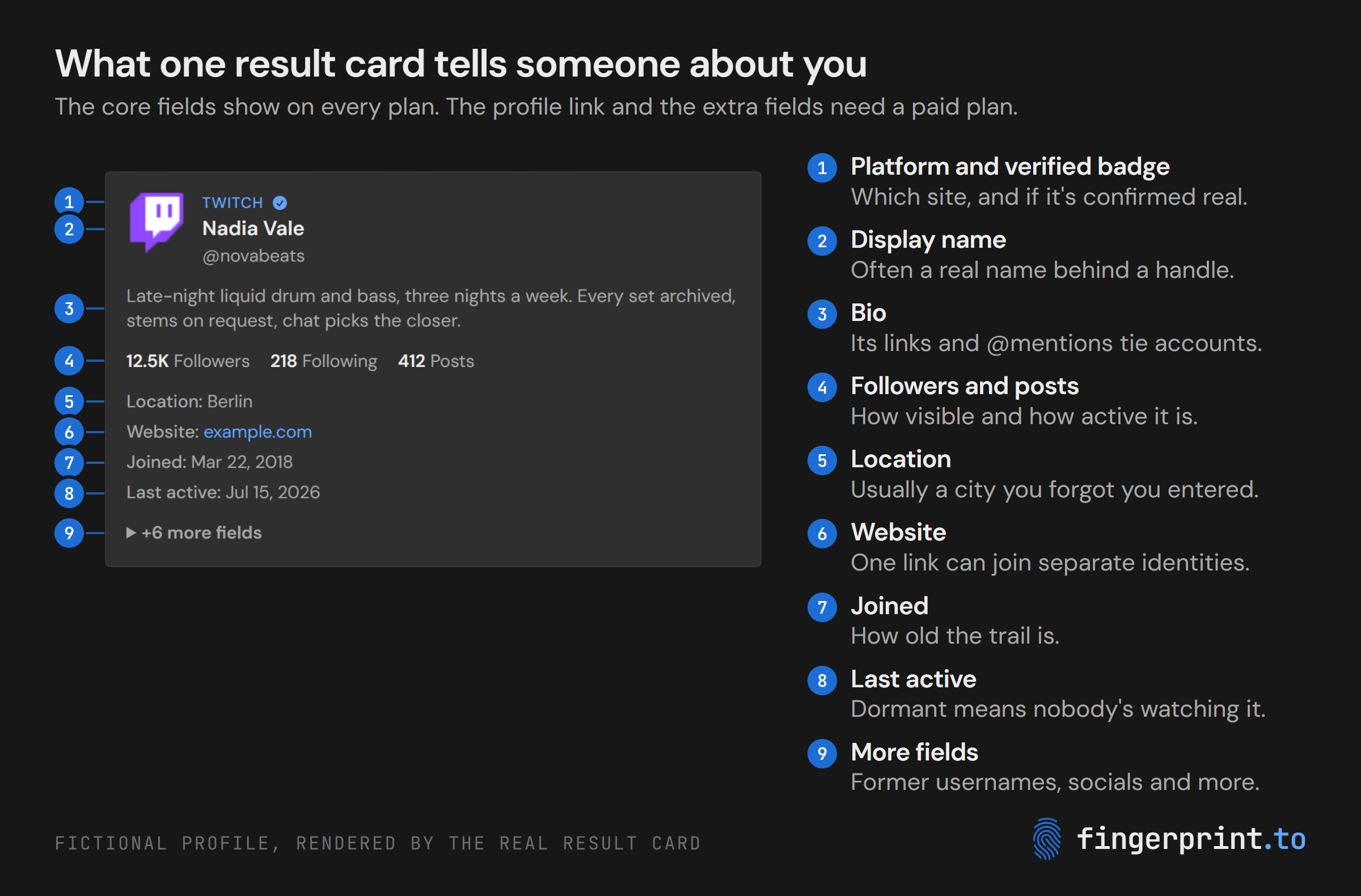
Not every site exposes every field. We counted how many of Fingerprint's username modules are written to return each one:
| Field | Share of username modules that return it |
|---|---|
| Profile picture | about 9 in 10 |
| Bio | about 3 in 4 |
| Join date | about 6 in 10 |
| Location | about half |
| Last active | about half |
| Follower count | under half |
| Website link | about 4 in 10 |
| Former usernames | 15 modules |
Counted from the module source on October 16, 2026. A module returns a field only when the profile has it filled in.
Three of these deserve attention in a self-audit:
- The bio and website fields are the connectors. A Linktree in one bio, a GitHub link in another, and an @mention in a third are what let a stranger join your separate identities into one person. We showed how far that goes in how payment apps expose real names.
- Join dates and last-active dates find the forgotten accounts. The dormant ones are the risk: old bios, old photos, old locations, and nobody watching them.
- Renaming is not erasing. Fifteen modules return former usernames, including Roblox, osu!, Bluesky and Smule, and the Minecraft module reads name history from NameMC. If you changed a handle to break a link to your past, check whether the old name is still attached.
The free tier shows the core fields: platform, display name, picture, bio, location, follower counts, join date and last activity. Paid plans unlock the direct profile link on each card and the extra fields behind "more fields".
Step 3: find your oldest and most dormant accounts
Switch to table view, which lists every match with its follower count, location, join date and last activity in one sortable grid.
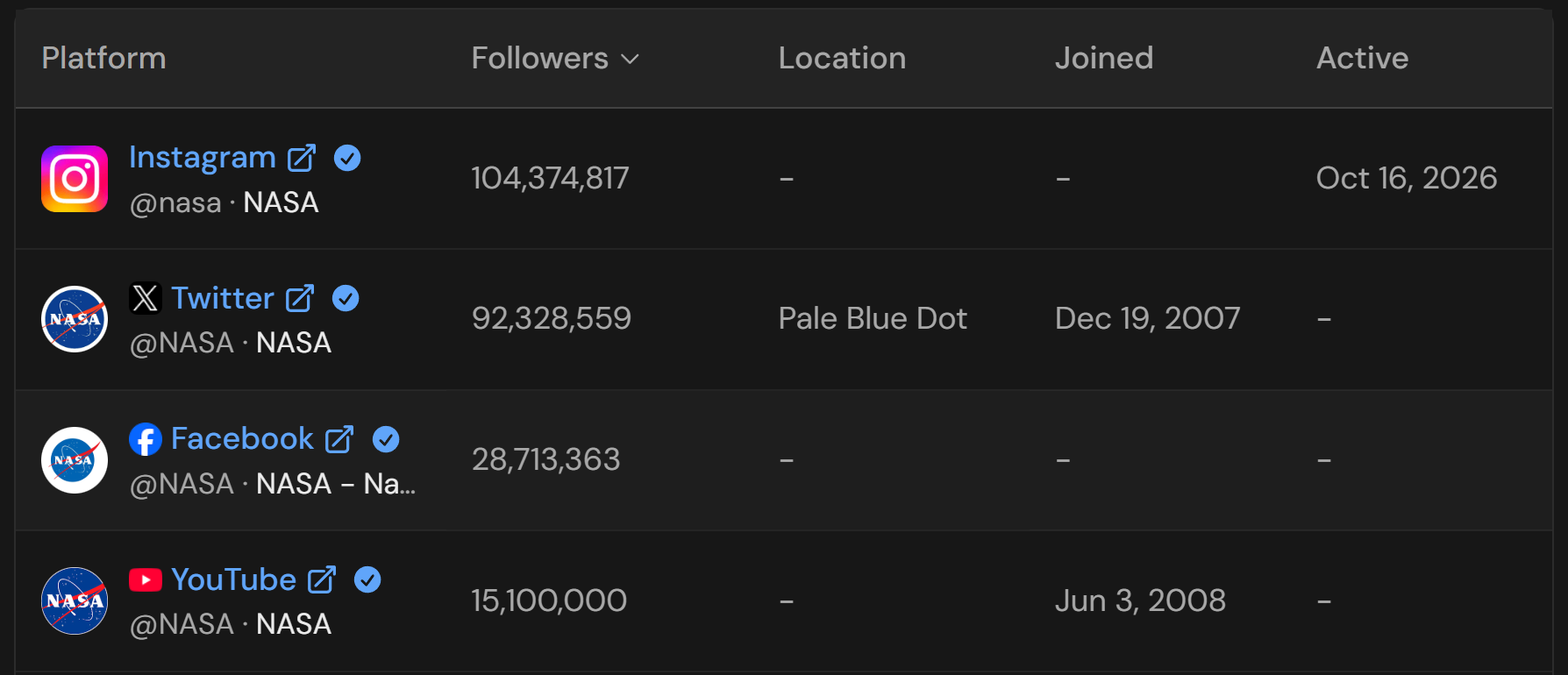
For an audit, two sorts matter:
- Joined, oldest first. Your oldest accounts carry the oldest version of you.
- Active, least recent first. Anything you haven't touched in years is a candidate for deletion.
The summary boxes above the results do the other half of the work. Fingerprint gathers every profile picture, banner, email address, phone number, display name and location found across the cards into one place. If any public profile of yours lists a phone number or a second email address, it shows up there, which is often the single most useful thing a self-search reveals.
Step 4: search every email address
An email search checks 194 services for accounts registered to that address, as of October 2026, and new modules ship most weeks. Just over half of the email modules return the name on the account, and about half return a profile picture, so an address you thought was anonymous can come back with your face on it.
Search each address on your list, including the old ones. The accounts tied to a school address from 2012 are exactly the ones nobody has looked at since 2012.
Step 5: search your phone number
A phone search runs the number through 69 apps that let people find each other by phone, and more than 40 of them return the name attached to the number. Enter it in international format with a plus sign and country code. If you've had several numbers, search each one you still remember.
This is the search that surprises people most. Fitness apps, payment apps and messaging apps match contacts by phone number by default, and the profile behind the match often carries a real name and a photo.
Step 6: decide what to do with each account
Work through the results with four buckets:
| Bucket | What qualifies | What to do |
|---|---|---|
| Keep | Accounts you use, with nothing in the bio or location you'd mind a stranger reading | Nothing, beyond knowing it's there |
| Clean up | Active accounts showing your city, your real name next to an anonymous handle, or an old photo | Edit the profile. Remove the location and anything that isn't needed |
| Unlink | Accounts whose bio or website points at another identity you keep separate | Remove the link, the @mention or the shared link-in-bio page |
| Delete | Dormant accounts you'd forgotten, and anything on a site you no longer trust | Log in and delete it at the source. Password-reset emails to an old address usually get you back in |
Three practical notes:
- Delete at the source. Fingerprint only reports what a platform publishes right now. Once the profile page is gone, it stops appearing in searches, here and everywhere else.
- Turn off phone discovery in the apps that found you by number. Most have a setting for whether people can find you by phone or email.
- Decide whether to keep the handle. If your username is unique and connects everything, a different handle for new accounts is the only thing that breaks the chain going forward.
Step 7: keep a record and check again
On Pro and Max, the Export button saves the full result set as a printable report, plain text, CSV or JSON.
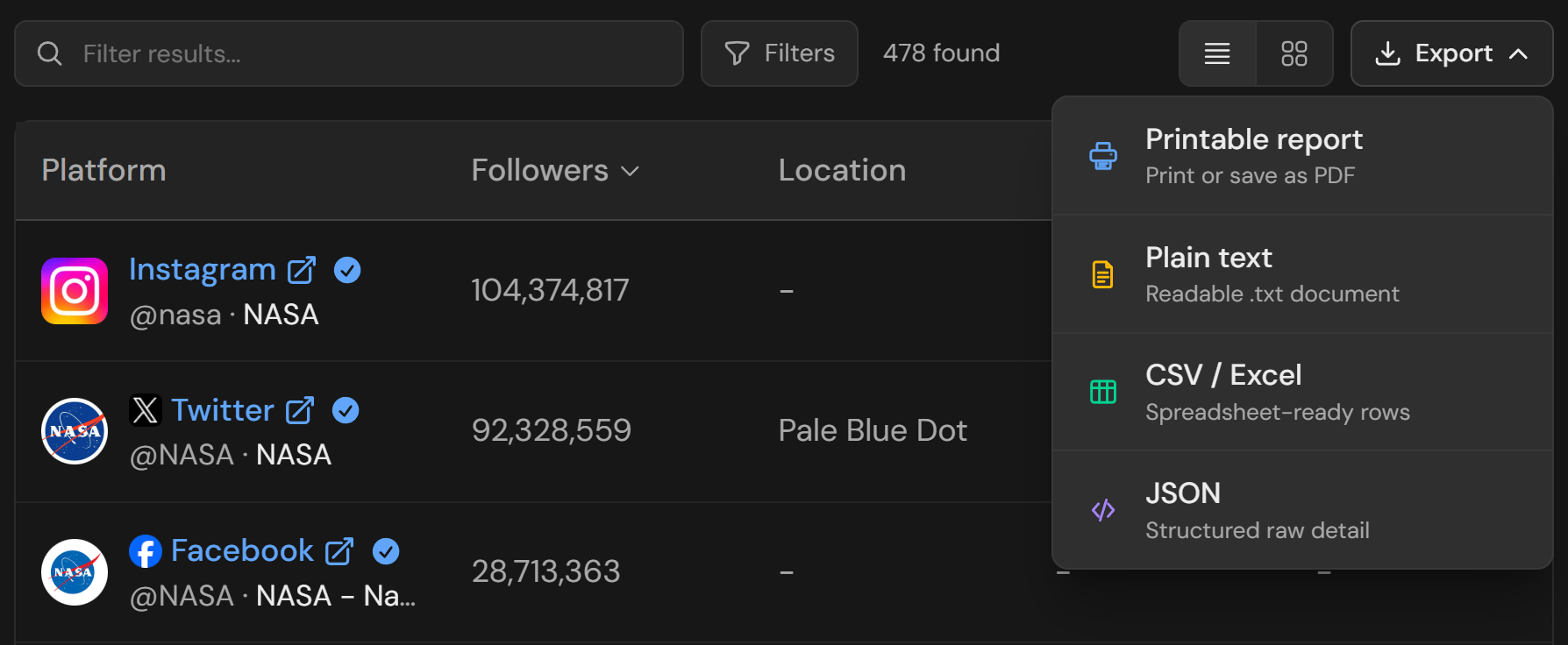
A CSV of your results is a checklist you can tick off while you clean up, and a copy to compare against the next time. With a free account, your search history is saved, so re-running the same searches in a few months is quick.
If you want to see how far a stranger could pivot from your accounts, Deep Search on the Max plan follows the usernames and emails found in your results and searches those too, up to three layers deep.
Keep yourself out of Fingerprint
Cleaning up your accounts is the real fix, because every OSINT tool reads the same public pages. Separately, you can keep your identifiers out of Fingerprint itself.
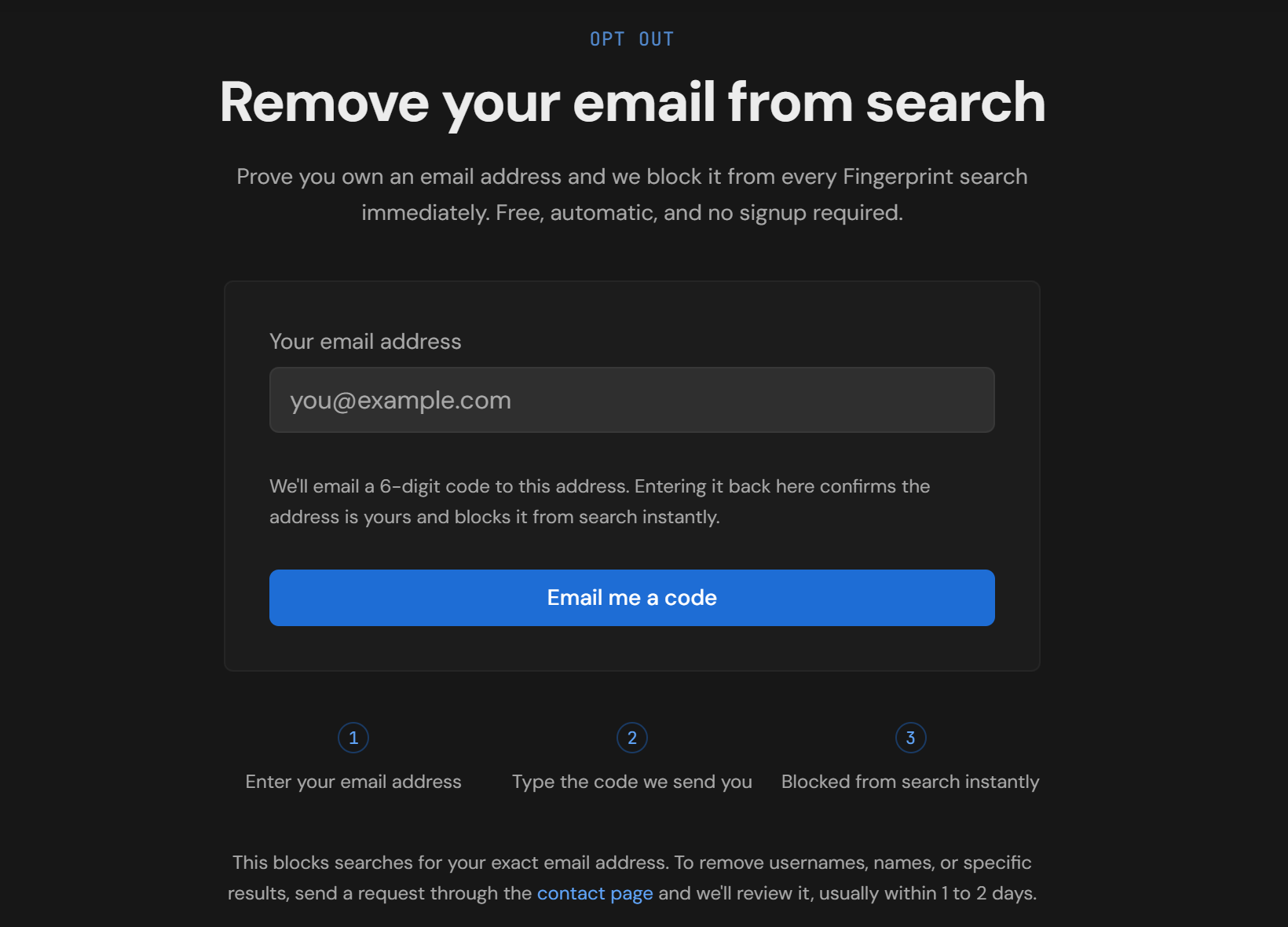
- Email addresses block instantly on the opt-out page. Enter the address, type the six-digit code it sends you, and it's excluded from every future search. No account needed.
- Usernames, phone numbers and names go through the contact page, where requests are reviewed, usually within one to two days.
Opting out stops Fingerprint from returning you. It doesn't remove the underlying profiles, which is why the clean-up steps come first.
What a self-audit costs
- The demo runs real username, email and phone searches with no signup and no card.
- A free account adds a monthly allowance and search history.
- Pro ($30/month, 500 searches) unlocks profile links, the extra fields and exports. Max ($100/month, 2,500 searches) adds Deep Search. Details are on the pricing page.
For most people, the free searches answer the main question: where do I exist, and what does each of those places show?
FAQ
How do I check my digital footprint for free?
Run your username, email address and phone number through the Fingerprint.to demo, which needs no account or card. Each search checks hundreds of sites and shows the public profile details behind every match. A free account adds a monthly search allowance and keeps your search history.
What can someone find from just my username?
A username search on Fingerprint.to checks 736 sites and returns every public profile using that handle, with the display name, picture, bio, location, follower counts, join date and last activity each site exposes. Links and mentions in those bios are what connect one account to the rest.
Does deleting an account remove it from search results?
Yes. Fingerprint searches live and reports what each platform publishes at that moment, so a profile that no longer exists stops appearing. Deleting at the source removes it from every tool, not just this one.
How do I remove myself from Fingerprint.to?
Email addresses can be blocked instantly on the opt-out page by verifying a six-digit code. Usernames, phone numbers and names are handled through the contact page, usually within one to two days. Neither removes the profiles themselves, so clean those up first.
How often should I search myself?
Every few months, and after any change that matters, such as a new job, a move or a username change. Keep a copy of your first results so you can compare and see what's new.
Start with your oldest handle
The account you'd least expect to still exist is the one to search first. Put your oldest username into the demo and see what's still out there.